One of my friends, Rāmin, recently asked me a question that sparked an interesting discussion. He said:
“I ran into a strange problem. When I change the SSH port in
sshd_configand reload the sshd service, the port changes correctly. But when I restart the sshd service, it reverts to port 22. I have to reload it again to make the change take effect. What’s the issue?”
This led us down a path of exploring socket-based activation in modern versions of Ubuntu and how it has changed the way SSH behaves. Here’s the solution and some insight into some GNU/Linux distros shift towards socket-based SSH activation.
What Is Socket-Based-Activation and its benefits?
Socket-based activation is a feature introduced by systemd that allows services to start only when they are needed — in this case, when there’s an incoming SSH connection. Previously, services like SSH would start automatically during system boot, even if no connection was requested. With socket-based activation, ssh.socket monitors incoming connection requests, and once detected, it triggers ssh.service to handle them.
This approach offers key benefits:
- Resource efficiency: The SSH service consumes memory and CPU only when there’s an active connection.
- Faster boot times: Since SSH doesn’t need to start during boot, system resources are freed up, speeding up the startup process.
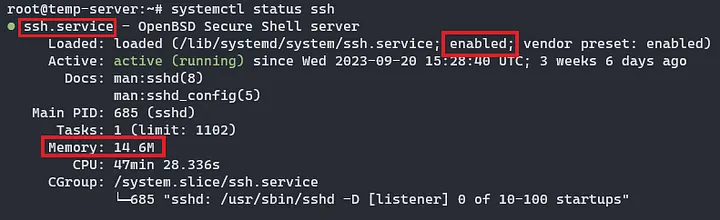
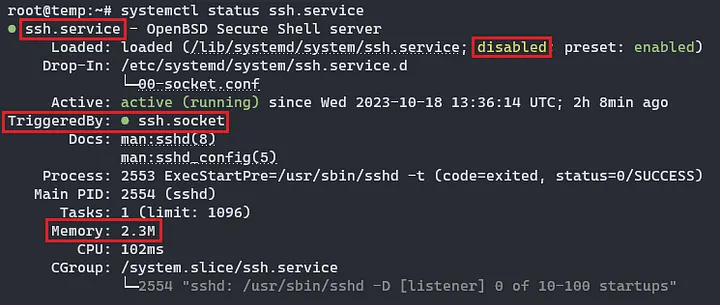
However, for users familiar with the traditional service model, like Ramin, this change can cause confusion when modifying SSH settings, as the service behaves differently under socket-based activation.
Why did the port revert to 22?
Ramin’s issue stems from the interaction between ssh.socket and sshd.service. When he edited the sshd_config file to change the SSH port, it worked after reloading the SSH service. However, upon restarting, the settings reverted because ssh.socket was still handling the port assignment.
Press enter or click to view image in full size

In socket-based activation, ssh.socket overrides the port configuration in sshd_config unless properly adjusted. So, when sshd.service is restarted without addressing the socket configuration, it falls back to the default behavior, typically port 22.
How to check if your distro uses Socket-Based-Activation for SSH
If you’re wondering whether your Linux distro is using socket-based activation for SSH, there’s a quick and easy way to check. Just follow these steps:
- Open your terminal.
- Run the following command to check the status of the SSH service:
systemctl status ssh3. In the output, look for the term TriggeredBy. If you see it in the output, that means your system is using socket-based-activation for SSH, welcome to the club! This means that the ssh.socket is managing incoming connections and only triggering the ssh.service when a request is made.
If you don’t see TriggeredBy, then your system is likely still using the traditional method, where SSH is started at boot regardless of incoming connections.
How to fix?
To solve the problem, there are two main options:
1. Adjust the socket configuration — Recommended!
If you want to keep using socket-based activation but change the SSH port, you’ll need to modify the configuration of ssh.socket. Here’s how:
Open the socket configuration file:
sudo vi /lib/systemd/system/ssh.socketFind the line starting with ListenStream and change the port number to your desired port:
ListenStream=22Save the changes and reload the systemd daemon:
sudo systemctl daemon-reloadRestart both the socket and SSH services:
sudo systemctl restart ssh.socket sudo systemctl restart sshdOR
update listening socket stream and reload it:
mkdir -p /etc/systemd/system/ssh.socket.dcat >/etc/systemd/system/ssh.socket.d/listen.conf <<EOF [Socket] ListenStream= ListenStream=1234 EOFsudo systemctl daemon-reload
sudo systemctl restart ssh.socket2. Disable Socket-Based-Activation (Revert to traditional SSH) — Not Recommended
If socket-based activation isn’t necessary for your setup, you can disable it and return to the traditional method of launching SSH at boot. Here’s how:
Stop and disable the ssh.socket service:
sudo systemctl stop ssh.socket sudo systemctl disable ssh.socketEnable and start the sshd.service so it behaves as it traditionally would:
sudo systemctl enable ssh.service sudo systemctl start ssh.serviceThis way, your sshd_config settings will be honored without interference from the socket-based activation, and your custom SSH port will persist across service restarts.
Why Socket-Based-Activation is a positive move
Although socket-based activation can sometimes be confusing, especially when making custom configurations like port changes, it’s a powerful tool for improving system performance. By only starting services when needed, it reduces memory usage and speeds up boot times.
Ubuntu’s and some other distros shift to socket-based-activation for SSH began in Ubuntu 22.10 (Kinetic Kudu) and has continued in subsequent versions. While some users have encountered issues with custom configurations, this new method generally offers better resource management.
Conclusion
For those of us who’ve been tweaking Linux configs since the Stone Age, getting our heads around socket-based activation might feel like trying to teach an old dog new tricks — except the dog is us, and the tricks involve systemd doing everything its own mysterious way. Whether you decide to wrestle with the newfangled socket stuff or kick it back to good old-fashioned SSH service, there’s a way to keep your setup just the way you like it (with fewer headaches).
As systemd keeps growing and adding more “surprises,” we can either grumble about the good old days or adapt, one man page at a time. Just remember: embrace the chaos, because this is the Linux life now.
Feel free to share your war stories or scream about socket-based SSH activation below — let’s laugh (or cry) about it together! 😉