Recently, I encountered a strange issue while trying to pull an image from Google Artifact Registry on my server in Germany. Despite using a proxy and tunneling methods, I kept receiving this error:
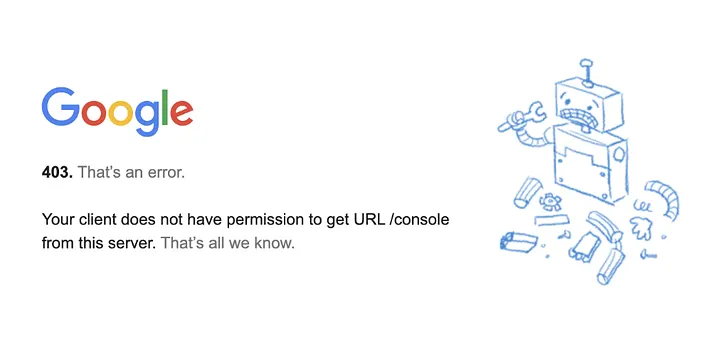
After several debugging attempts, I discovered that disabling IPv6 solved the issue immediately.
But why does this happen? Let’s explore some possible reasons.
1- Google might use GeoIP-based restrictions for some of its services. When a request is made, Google checks the IP location and decides whether to allow or block the request. However, GeoIP databases for IPv6 could be incomplete or outdated, leading to false blocks.
- Some IPv6 addresses might be mistakenly mapped to sanctioned countries.
- Certain IPv6 blocks may not be correctly registered in the GeoIP database, making Google unable to verify their origin, so access gets denied.
2- Although Google advocates for IPv6, some of its services may handle IPv6 differently:
- Edge servers could reject unauthenticated IPv6 requests to prevent abuse.
- Some internal firewall or CDN configurations might behave differently for IPv6, causing unexpected blocks.
3- If you’re using a VPN, proxy, or tunneling, there’s a possibility that:
- IPv6 requests bypass the proxy and expose your real location, leading to access issues.
- The assigned IPv6 range may be unknown or flagged, causing Google to reject the request.
4- Many modern operating systems prioritize IPv6 over IPv4 when both are available. This means:
- Even if your VPN/proxy assigns a valid IPv4 address, your system might still use an IPv6 address that Google blocks.
- You may think your request is coming from a safe IPv4 location, but Google actually sees an IPv6 address from an unwanted range.
How to Fix It? Disable IPv6
To force your Linux system to use only IPv4 and bypass these issues, disable IPv6 using the following commands:
For a temporary fix:
sysctl -w net.ipv6.conf.all.disable_ipv6=1
sysctl -w net.ipv6.conf.default.disable_ipv6=1
For a permanent fix:
echo "net.ipv6.conf.all.disable_ipv6 = 1" | sudo tee -a /etc/sysctl.conf echo "net.ipv6.conf.default.disable_ipv6 = 1" | sudo tee -a /etc/sysctl.conf sudo sysctl -pAfter applying these changes, retry accessing Google Cloud services, and the 403 errors should be resolved.
To check which IPv6 address your system is using before disabling it, try:
curl -6 https://ifconfig.co/jsonor
curl -6 https://ipinfo.ioThese services will show your IPv6 address and its associated location, which might explain why Google is blocking access.
Conclusion
If you’re running into unexplained 403 errors on Google Cloud services, consider disabling IPv6. Due to possible issues with outdated GeoIP databases, regional restrictions, and internal Google policies, IPv6 requests may be rejected even when IPv4 works fine. This simple fix could save you hours of frustration!